Rich Messages in Chat: Formatting, Media and Buttons in One Window
Replying with more than plain text is now easier. The new rich message window lets you format your text, add a photo, video or document, and add buttons your customer can tap, all with a live preview before you send.
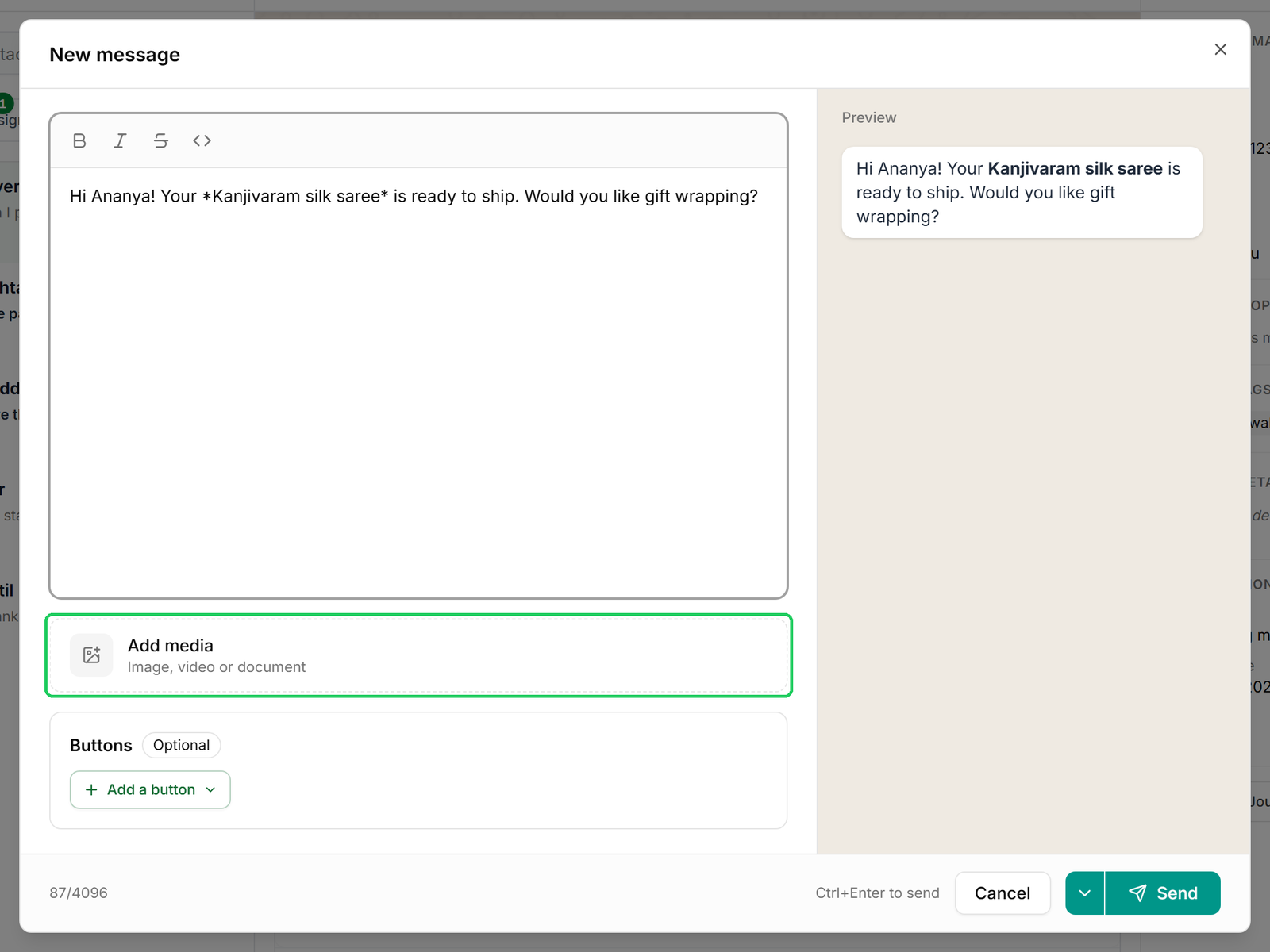
How to use it
- Open a chat and click the first button in the toolbar under the message box (Rich message - format, media, buttons).
- Write your message. Use the buttons for bold, italic,
strikethroughandmonospace. - Click Add media to attach an image, video or document.
- Click Add a button to add up to 3 Custom reply buttons, or one Visit website button.
- Check the Preview and click Send. You can also schedule it with the arrow next to Send.
The same window opens when you attach a photo, video or document, or pick a quick response that has media or buttons.
Also new
- Template formatting shows in chat. Bold, italic, strikethrough and monospace text in your templates now looks the same in your chats as it does on your customer's phone.
- Reply buttons are easier to spot in chat bubbles, with a small reply icon.
- Website buttons on campaign messages open the right page. If a campaign template has a personalised link, clicking its button in the chat now opens the exact link that customer received.
Good to know
- A message with media or buttons can be up to 1,024 characters. Plain text can be up to 4,096.
- Buttons in a chat reply work only within the 24-hour reply window, like any other free-form message.
- Available on every plan.
Full details are on the Rich Messages page. See Sending Messages for more on replying to customers.