A Cleaner Templates Page: Filters, Message Previews and Sync from Meta
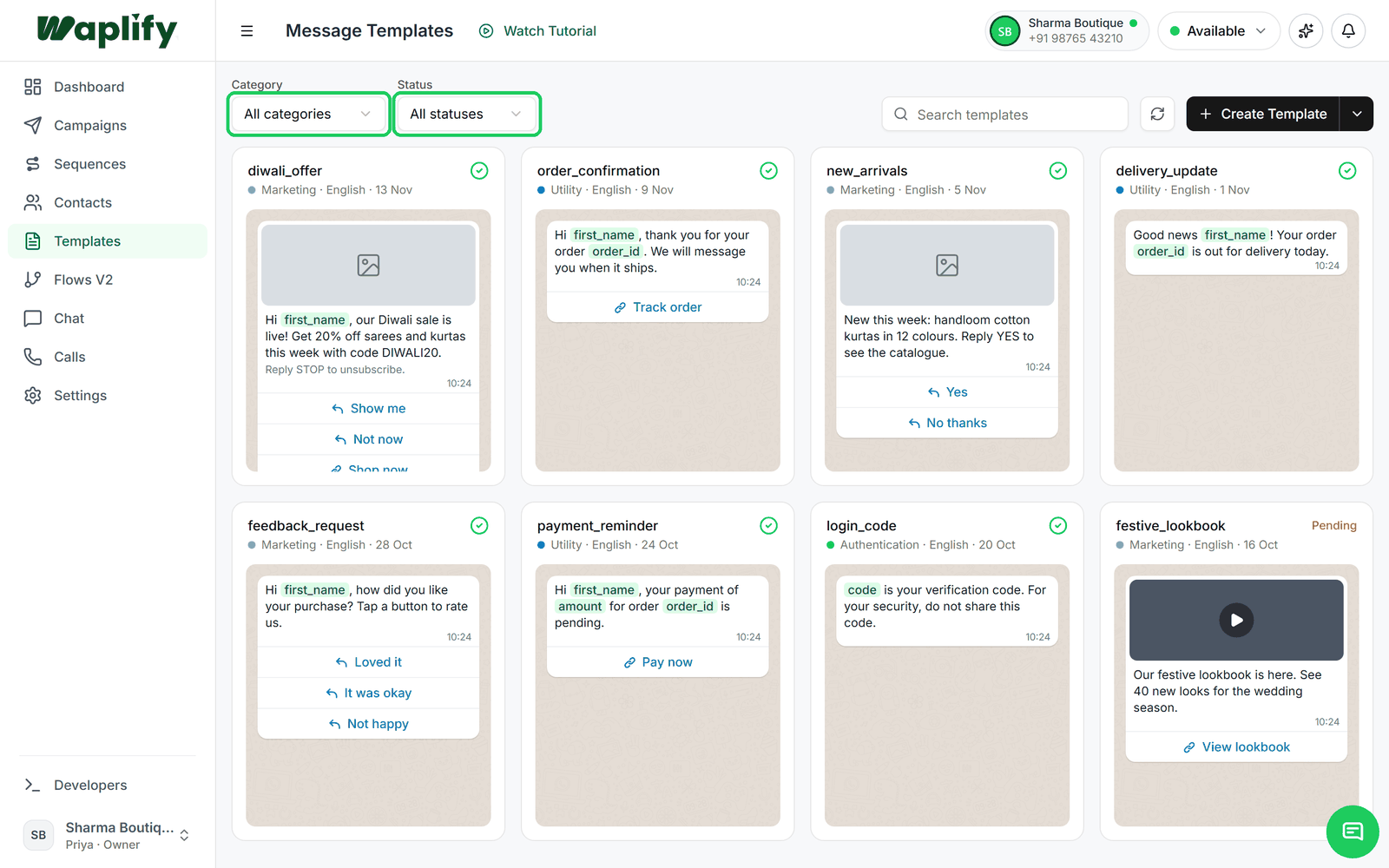
The Templates page has a new look. Every template now shows as a card with a WhatsApp-style preview, so you see exactly what your customer will receive, and simple filters help you find the one you need.
What's new
- Preview cards. Each card shows the message as it looks on WhatsApp, with its name, a green tick when approved, its category, language and date, and variables like
first_nameas green tags. - Filters at the top. Pick a Number, a Category (Marketing, Utility, Authentication) and a Status (Approved, Pending, Rejected, Paused or Drafts). Each category shows how many templates it has.
- All numbers at once. The page opens on All numbers. If you have more than one WhatsApp number, each card shows which numbers can send it.
- Sync from Meta. Click the round arrows next to the search box to pull the latest status of your templates from Meta right away.
- Create on Meta. Click the small arrow next to Create Template to build a template on Meta's own website instead.
- Drafts in one place. Pick Drafts in the Status filter to see templates you saved but haven't submitted yet.
Do I need to do anything?
No. Your templates are all still there. Open Templates to see the new page.
Full details are on the Message Templates page.