Rich Messages
What is a Rich Message?
A rich message is a chat reply that does more than plain text. In one window you can format your text, add a photo, video or document, and add buttons your customer can tap. A live preview shows how it will look on your customer's phone before you send it.
It is a quick way to share a brochure with a caption, or ask a question your customer can answer with one tap (for example Yes / No).
How to use it
Open the rich message window
- Go to Chat and open the conversation.
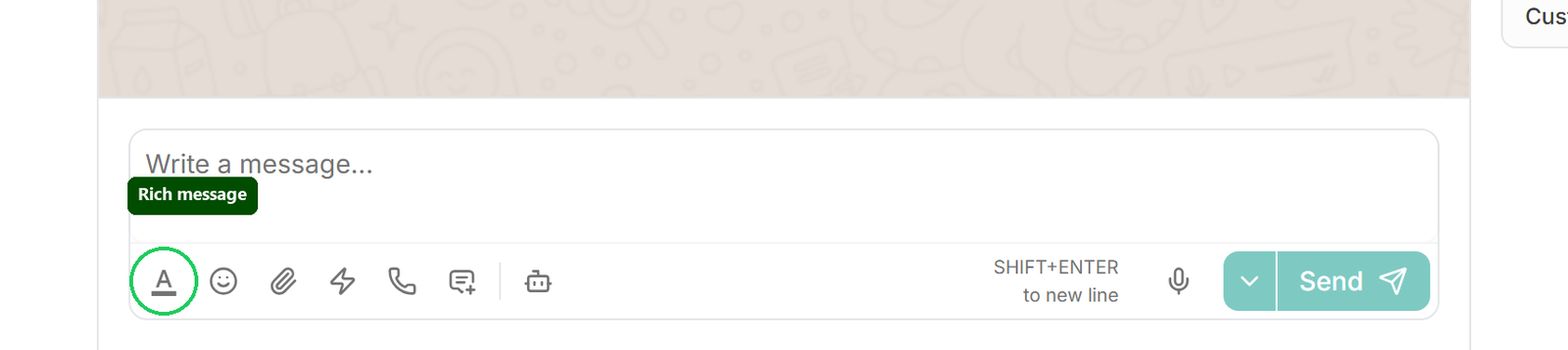
- In the toolbar under the message box, click the Rich message button (it says Rich message - format, media, buttons when you point at it). A New message window opens.
The same window also opens when you:
- attach or drop a photo, video or document into the chat, or
- pick a quick response that has media or buttons.
Write and format your message
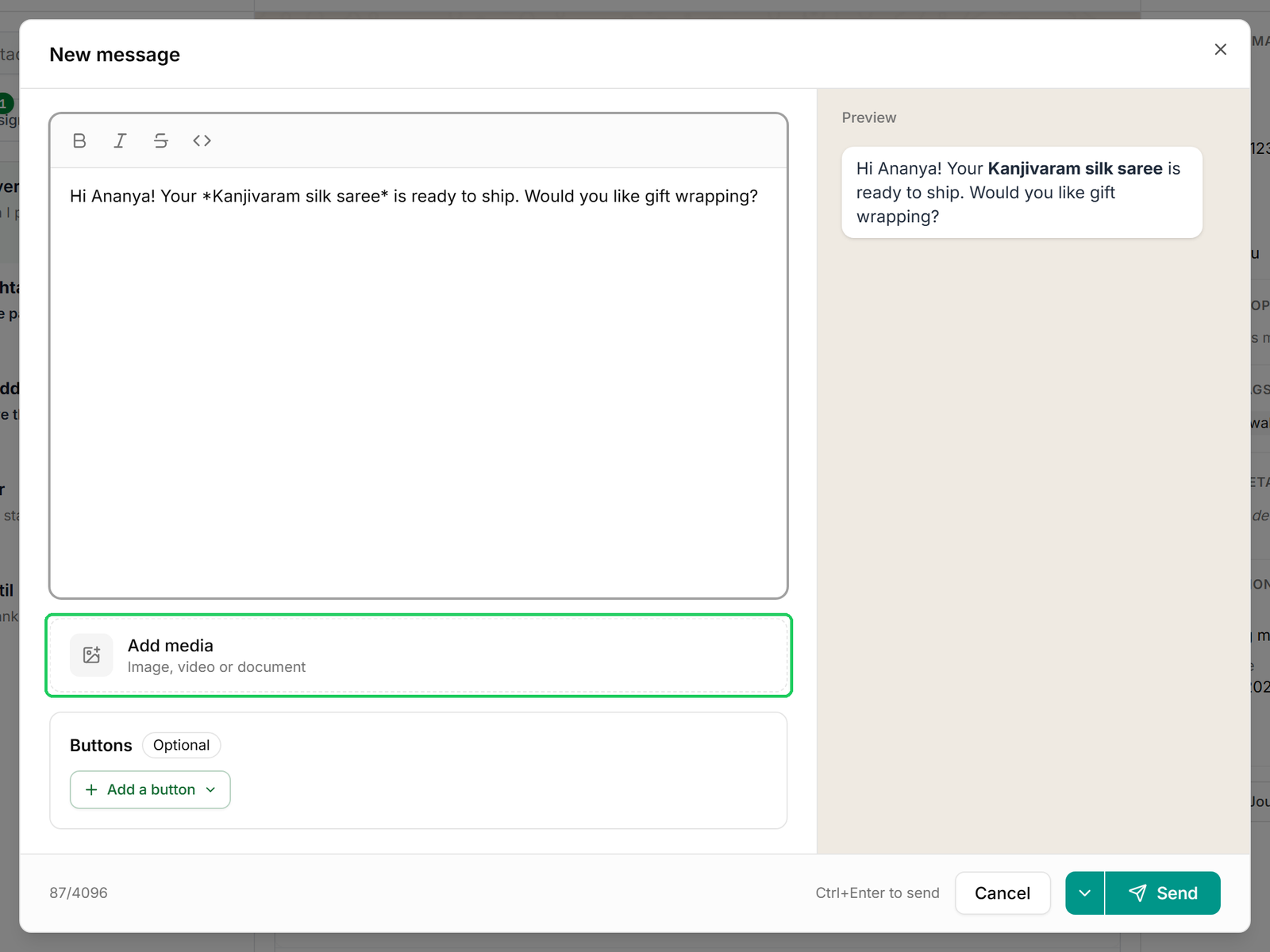
- Type your message in the box (Write your message, or Add a caption when you have added media).
- Select some text and use the buttons above the box:
- Bold (Ctrl+B)
- Italic (Ctrl+I)
- Strikethrough
- Monospace
Add a photo, video or document
- Click Add media and choose an image, video or document.
- To swap it, click Replace. To take it off, click Remove media.
Audio files are sent on their own, without text or buttons, so they don't open this window.
Add buttons
- Under Buttons, click Add a button.
- Choose one kind:
- Custom reply (under Quick reply buttons): your customer taps it and their choice comes back to you as a reply. You can add up to 3.
- Visit website (under Call to action buttons): opens a web page you choose. You can add 1.
- Type the Button text (up to 20 characters). For a website button, also enter the Website URL, starting with
https://.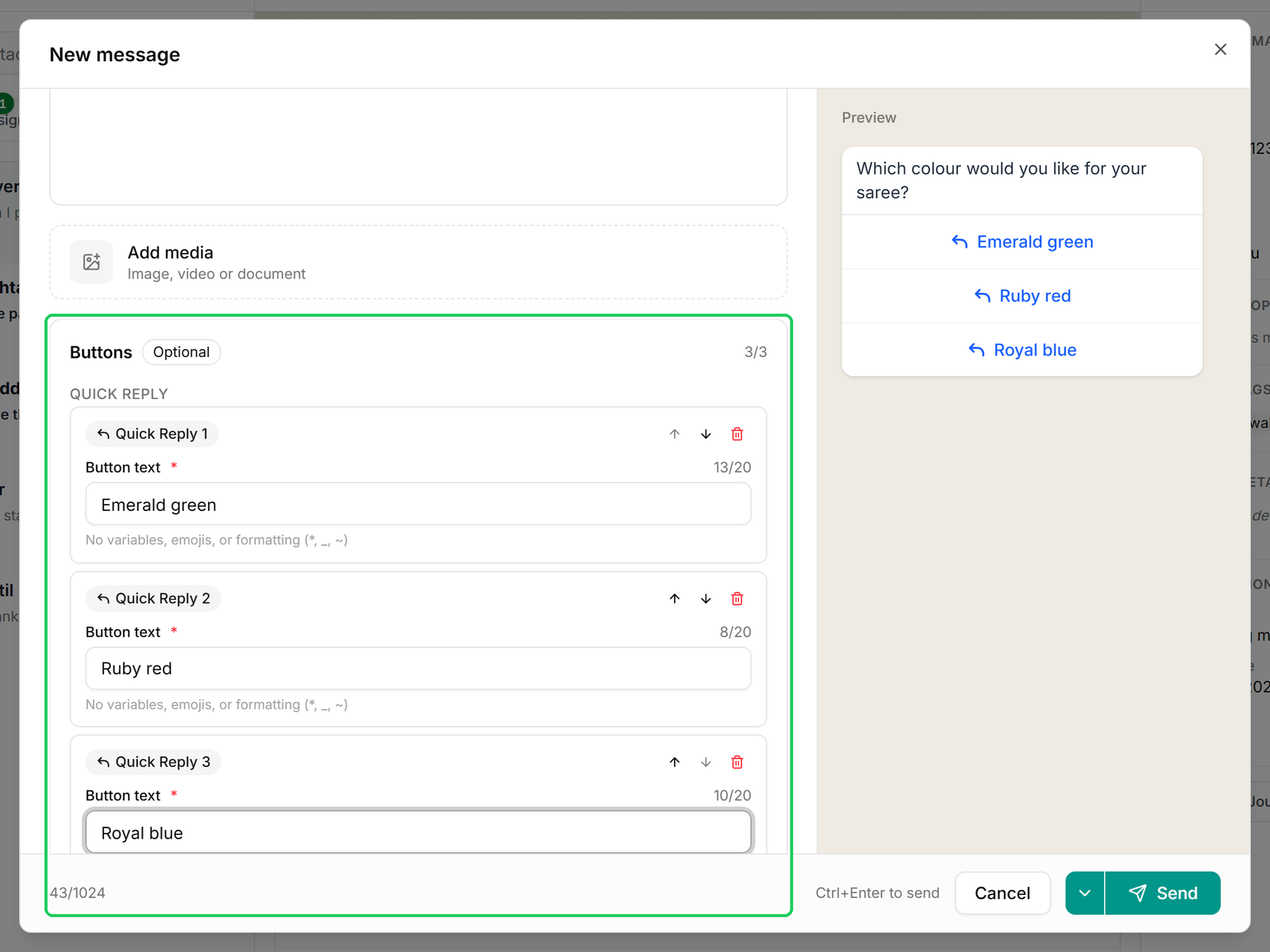
You can't mix the two kinds in one message: use reply buttons or a website button.
Check and send
- Look at the Preview to see how your customer will see it.
- Click Send, or press Ctrl+Enter.
To send it later, click the arrow next to Send and pick a time. See Schedule Messages.
Limits
| Up to | |
|---|---|
| Plain text message | 4,096 characters |
| Message with media or buttons | 1,024 characters |
| Reply buttons | 3 per message |
| Website buttons | 1 per message |
| Button text | 20 characters |
The counter under the message box shows how many characters you have used. If you go over, Waplify asks you to keep the message under the limit.
Tips & best practices
- Ask with buttons. "Would you like a callback?" with Yes and No buttons gets more answers than a question the customer has to type a reply to.
- Keep button text short and clear, like Book now or Talk to us. Each reply button needs a different label.
- Use bold for what matters, like a price or a date, not for whole paragraphs.
- Save messages you send often as quick responses with media or buttons, so you can send them again in two clicks. See Quick Responses.
Frequently asked questions
Can I send buttons when the 24-hour window is closed?
No. A rich message is a normal chat reply, so it can only be sent within the 24-hour reply window. When the window is closed, send an approved template instead.
Why is my message limited to 1,024 characters?
WhatsApp allows up to 1,024 characters on a message that has a photo, video, document or buttons. Plain text can be up to 4,096 characters.
Can I add a phone number button?
Not in a chat reply. You can add Custom reply buttons or one Visit website button. For other buttons, use a template.
Can I add an emoji or bold text to a button?
No. Button text can't have emojis, variables or formatting.
What does my customer see when they tap a reply button?
Their tap comes back to you as a reply in the chat, showing the button text they picked, so you know what they chose.