Schedule Messages in Chat: Write Now, Send Later
You can now schedule a message from any chat. Write your reply, pick a time, and Waplify sends it for you. It works for text, photos, videos, documents and approved templates.
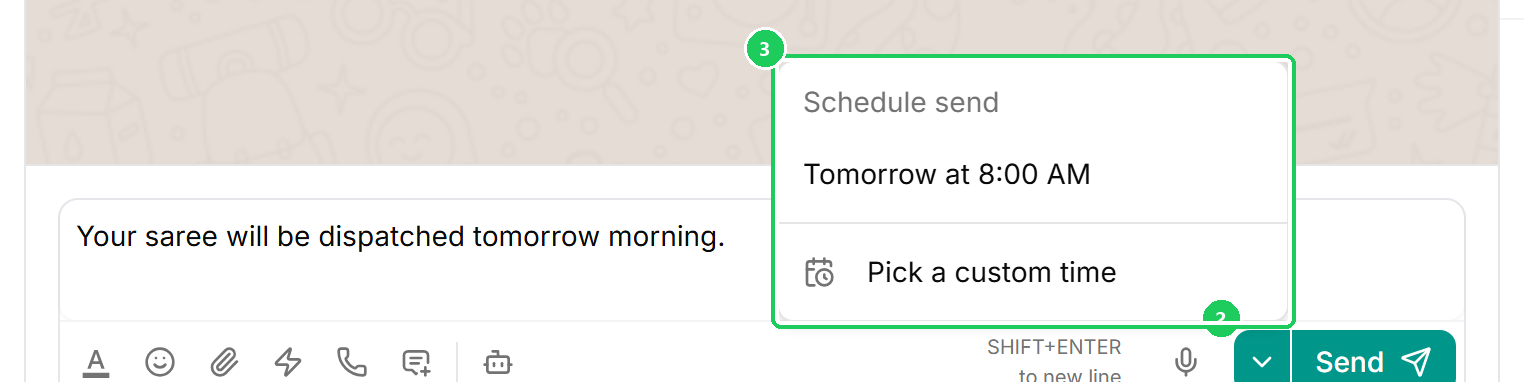
How to schedule a message
- Open a chat and type your message.
- Click the small arrow next to Send.
- Pick a quick time, like Tomorrow at 8:00 AM or Next Monday at 8:00 AM, or click Pick a custom time to choose your own date and time.
To schedule a template, open the template window and click Schedule next to Send Template.
See and change what's scheduled
A strip above the message box shows how many messages are waiting and when the next one goes out. Click it to see them all. Each one has a ⋮ menu where you can Send now, Edit (or Reschedule) or Cancel.
Good to know
- You can schedule up to 30 days ahead, and up to 20 messages per chat.
- Normal messages must go out within the 24-hour reply window. If the window will be closed by then, Waplify asks you to pick an earlier time or schedule a template instead. Templates can be scheduled at any time.
- If a message can't be sent, it shows Not sent with the reason, so you can send it again yourself.
- The message goes out in the name of the person who scheduled it.
- Available on every plan.
Full details are on the Schedule Messages page. New to the inbox? See Sending Messages.