Schedule Messages
What is Schedule Messages?
Sometimes the right time to send a message is not right now. With Schedule Messages you write your reply in a chat, pick a date and time, and Waplify sends it for you. You can schedule text, photos, videos, documents, audio, messages with buttons and approved templates.
Scheduled messages wait in a strip above the message box, so you and your team can see what is coming and change it before it goes out.
How to use it
Schedule a message
- Go to Chat and open the conversation.
- Type your message. You can also attach a photo, video or document, or open the rich message window to add buttons.
- Click the small arrow joined to the Send button (it says Schedule message when you point at it). The Schedule send menu opens.
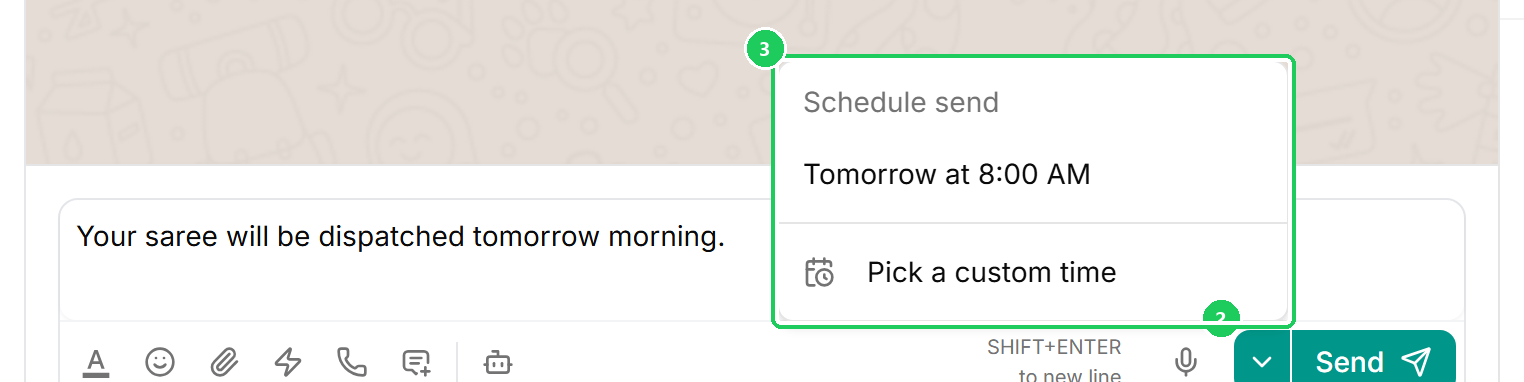
- Pick one of the quick times, for example:
- Today at 1:00 PM (shown in the morning) or Today at 6:00 PM (shown from 11 AM to 4 PM)
- Tomorrow at 8:00 AM
- Next Monday at 8:00 AM
- Or click Pick a custom time, choose a date under Select a date and a time under Select a time, then click Schedule send.
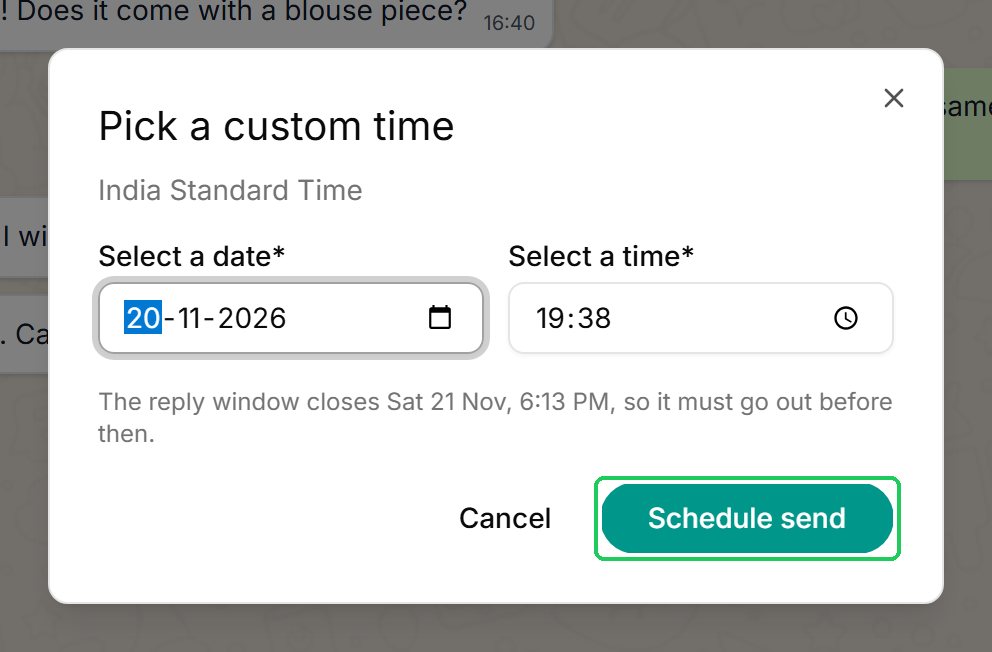
You see Message scheduled, and the message appears in the scheduled strip above the message box.
Times are in your own time zone. The Pick a custom time window shows which one at the top, for example "India Standard Time".
Schedule a template
Templates can be scheduled at any time, even when the 24-hour reply window is closed.
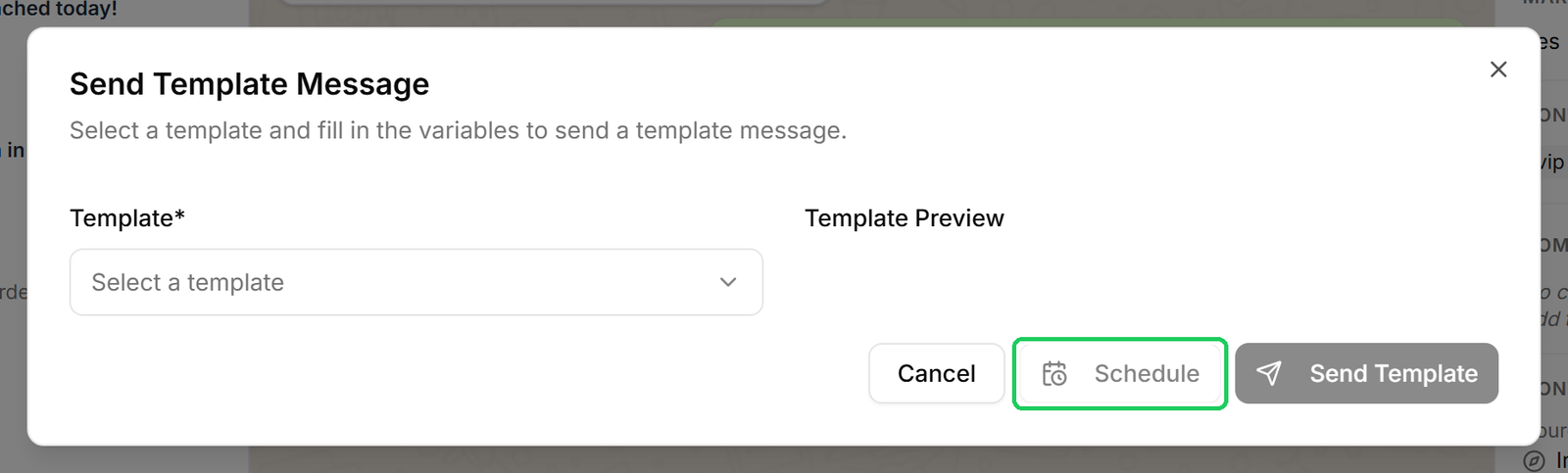
- In the chat, open the template window (Send Template Message).
- Choose an approved template and fill in its variables.
- Click Schedule (the button with the calendar icon, next to Send Template).
- Pick a quick time or Pick a custom time.
You see Template scheduled.
See what is scheduled
When a chat has messages waiting, a strip appears above the message box. It shows how many are scheduled (for example "2 scheduled") and when the next one goes out, with the start of its text.
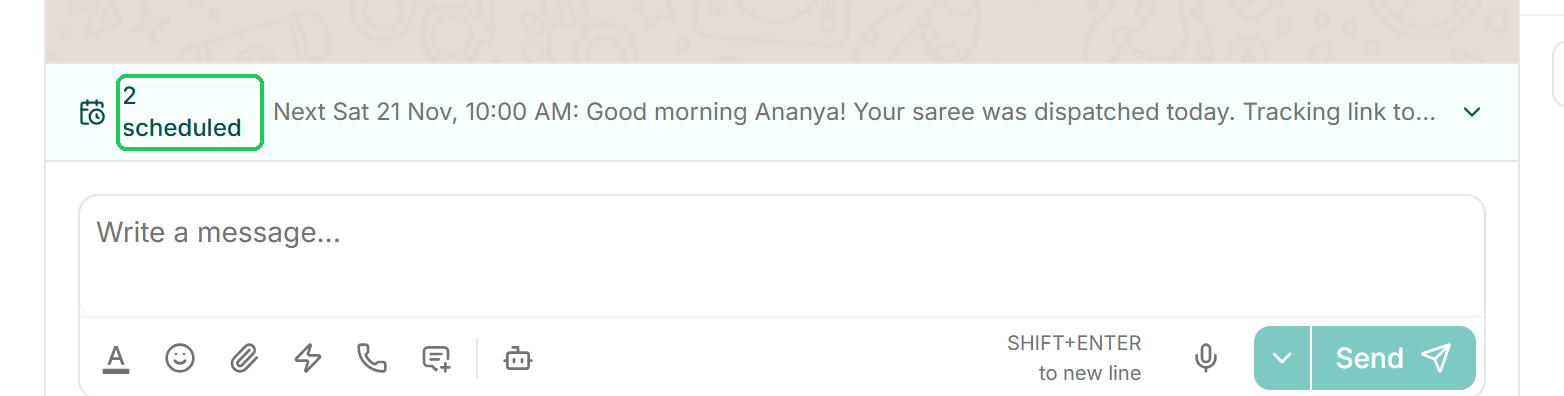
Click the strip to see every scheduled message in that chat, with its time. If a teammate scheduled one, you see by and their name.
Change or cancel a scheduled message
Click the ⋮ menu next to a scheduled message:
- Send now sends it straight away.
- Edit lets you change the text and the time of a text message (including one with buttons). Click Save when done.
- Reschedule changes the time of a photo, video, document, audio or template message. Click Save when done.
- Cancel removes it. There is no "Are you sure?" step, so it is cancelled at once.
When a message could not be sent
If Waplify can't send a message at its time, it stays in the strip marked Not sent, with the time it was due and the reason in red. Common reasons:
- The 24-hour reply window had closed by the scheduled time. Send a template instead.
- The workspace's plan is not active, so nothing can be sent.
- The person who scheduled it can no longer reply to chats, for example because they left the team.
Nothing is sent again by itself. Send the message yourself if it is still needed, then click Dismiss in its ⋮ menu to clear it. Messages that were not sent stay visible for 7 days.
Rules and limits
- Up to 30 days ahead. And at least a minute from now.
- Up to 20 scheduled messages per chat. Cancel one to add another.
- Normal messages must go out within the 24-hour reply window. If the window will be closed by your chosen time, Waplify asks you to pick an earlier time or schedule a template instead. Quick times that fall after the window closes are not shown.
- Templates can be scheduled at any time, because they don't need an open window.
- It is sent in your name. The message goes out as the person who scheduled it. Waplify checks again at send time that you can still reply in that chat.
- What can't be scheduled: voice notes, locations, catalogs and call buttons. Send these straight away.
- Who can change what: you can change your own scheduled messages. Team members who can see all chats can also change or cancel anyone's.
- Available on every plan.
Tips & best practices
- Reply when your customer is awake. If a message comes in late at night, schedule your answer for Tomorrow at 8:00 AM so it lands at the top of their chats in the morning.
- Mind the 24-hour window. For a follow-up two or three days later, schedule a template, since a normal message can't go out once the window closes.
- Check the strip before you send by hand, so the customer doesn't get the same message twice.
- Use Send now when plans change and the message should go out early, instead of cancelling and retyping it.
Frequently asked questions
Can I schedule a message for more than 30 days ahead?
No. You can schedule up to 30 days ahead. For something further out, schedule it later, or use a campaign.
Why can't I pick a later time for my message?
The 24-hour reply window will close before that time, and WhatsApp doesn't allow normal messages after it closes. Pick an earlier time, or schedule an approved template instead.
What happens if I cancel a scheduled message by mistake?
It is removed straight away and can't be brought back. Write the message again and schedule it.
Will the customer know the message was scheduled?
No. They receive it like any other message from your business, at the time you picked.
Can my teammates see the messages I schedule?
Yes. Anyone who can open the chat sees your scheduled messages in the strip, with your name next to them. Only you, or a teammate who can see all chats, can change or cancel them.