Media Library
What is the Media Library?
The Media library is where Waplify keeps your images, videos, audio files and documents. Every file you upload anywhere in Waplify, for example in a chat or a quick response, lands here, ready to use again on any send screen.
Upload a price list or a product video once, then pick it from the library whenever you need it, instead of hunting for it on your computer.
How to use it
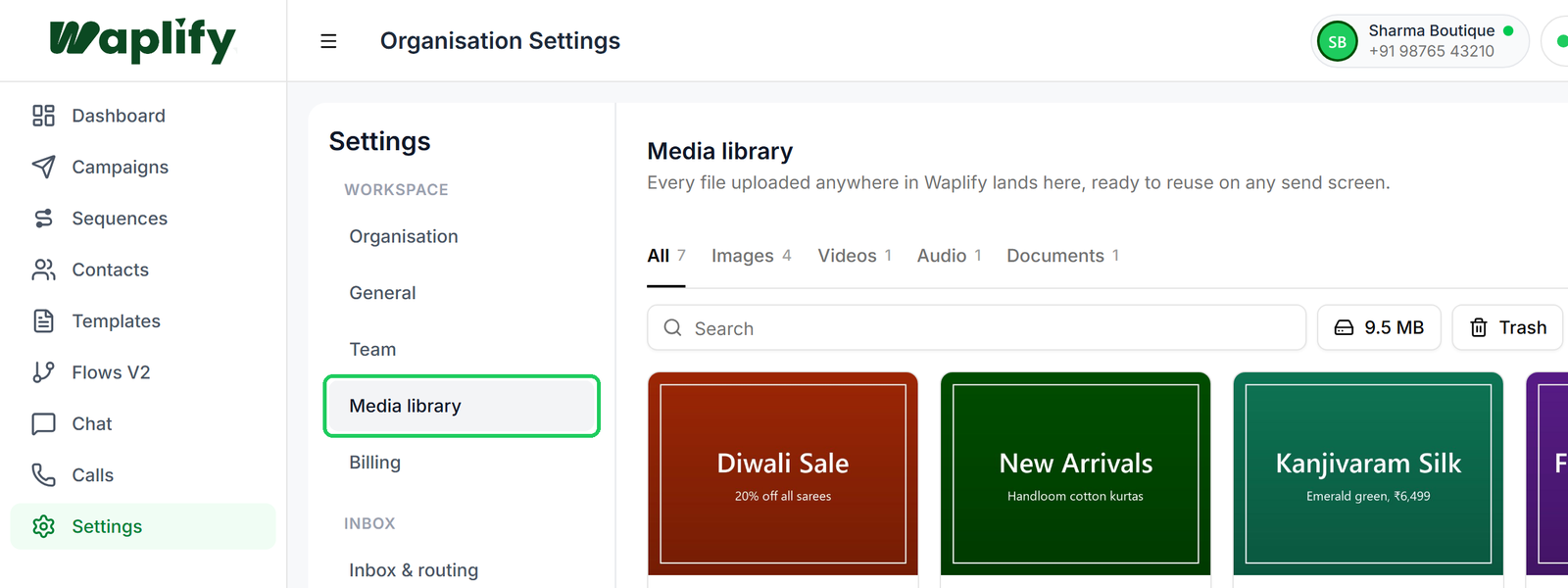
Open the Media library
- Go to Settings.
- Under Workspace, click Media library.
Upload files
- Click Upload.
- Drag your files into the box, or click Browse files to choose them.
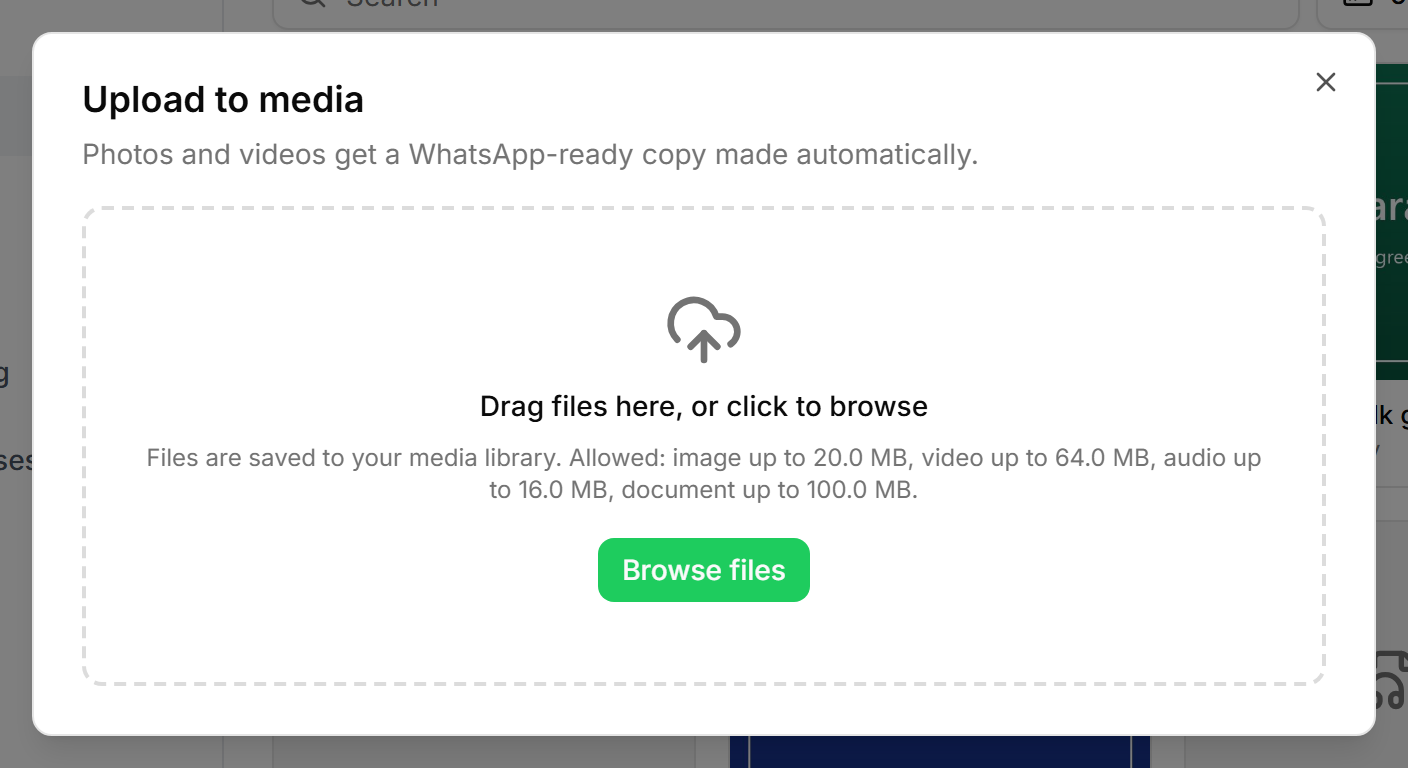
- Wait until you see Uploaded to your media library, then click Done.
You can also drag files straight onto the Media library page to upload them.
Photos and videos get a WhatsApp-ready copy made automatically, so they send without errors even if the original is a little too big or in a format WhatsApp doesn't like.
Find a file
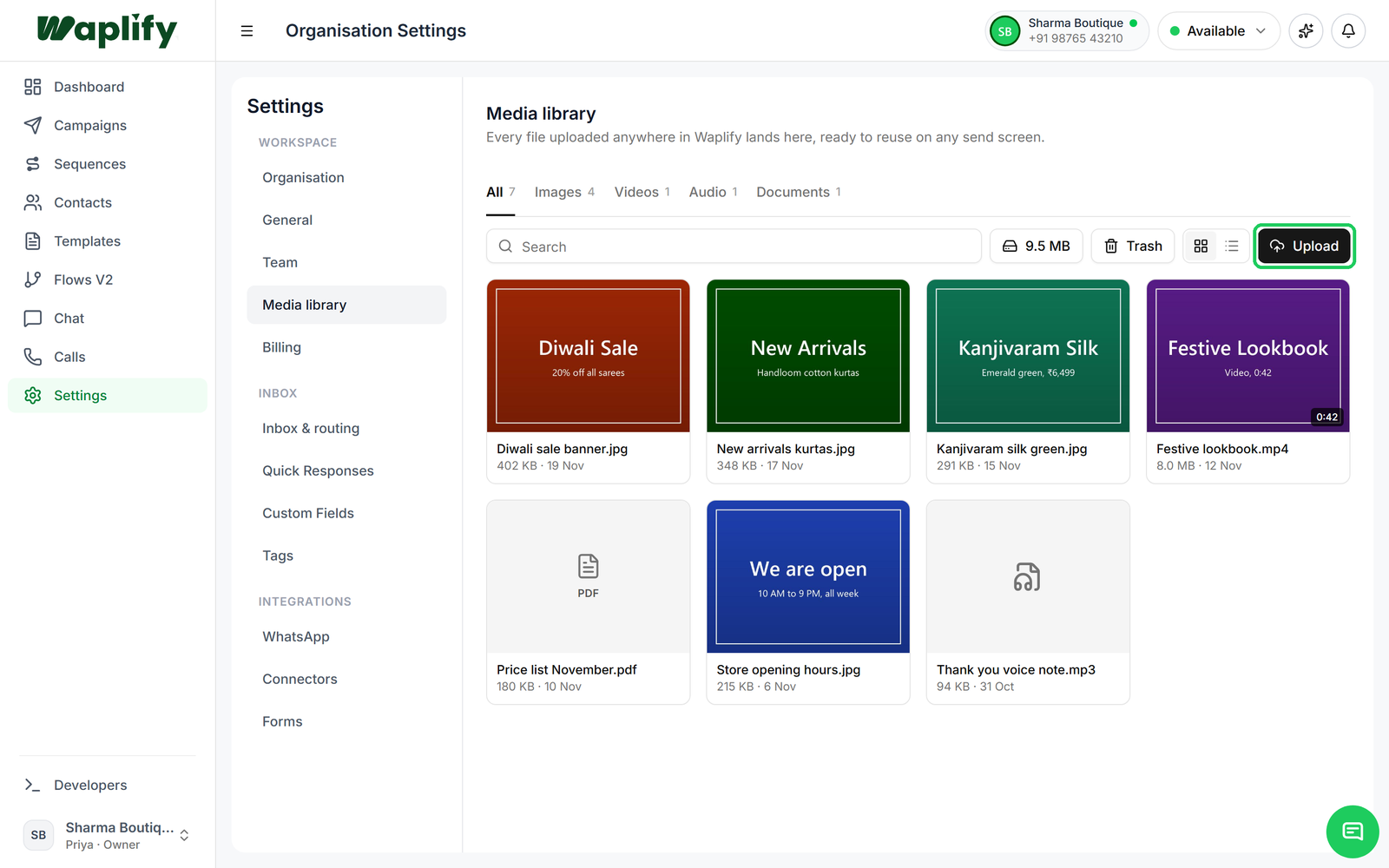
- Use the tabs All, Images, Videos, Audio and Documents to see one type of file. A tab only shows when you have files of that type.
- Type in Search to find a file by name.
- Switch between Grid view and List view.
Rename, copy a link or download
Click the ⋮ menu on a file:
- Rename gives the file a new name. Type it and click Save.
- Copy link copies the file's web address. Paste it anywhere, or use it as
media_urlin the Waplify API. - Download saves the file to your computer.
Move files to the trash
- Click the ⋮ menu on a file and choose Move to trash.
- To see what's in the trash, click Trash at the top of the page. Click All files to go back.
- To bring a file back, open Trash, click its ⋮ menu and choose Restore.
Files in the trash are deleted for good after 30 days.
Delete a file permanently
- Click the ⋮ menu on a file (in All files or in Trash) and choose Delete permanently.
- Confirm. The file is removed from your library and storage, and this can't be undone.
If the file is still used by a sequence, a chatbot flow or a quick response, Waplify tells you first. If you delete it anyway, those messages go out without it.
Pick a file from the library
When you add an image, video, audio file or document to a quick response:
- Click the button to add the file. The Select media window opens.
- Pick a file on the Library tab, or upload a new one on the Upload tab.
- Click Select.
File types and sizes
| Type | Formats | Up to |
|---|---|---|
| Images | JPG, PNG, WEBP | 20 MB |
| Videos | MP4, 3GP, MOV, M4V | 64 MB |
| Audio | AAC, AMR, MP3, M4A, OGG, OPUS | 16 MB |
| Documents | PDF, Word, Excel, PowerPoint, TXT | 100 MB |
Who can use it
- Owners, admins and managers can open the Media library page, and upload, rename, trash and delete files.
- Agents can't open the page, but they can still pick files from the library and upload new ones when they send a message.
The Storage button at the top of the page shows how much space your files use. Files in the trash still count until they are deleted.
Tips & best practices
- Give files clear names, like "Price list Nov 2026", so your team finds the right one fast.
- Upload files you send often, such as menus, brochures and intro videos, so everyone can reuse them.
- Check before you delete. A file used in a sequence, chatbot flow or quick response will stop going out with those messages.
- Empty the trash only when you're sure. You have 30 days to restore a file you moved there by mistake.
Frequently asked questions
What happens to a file I move to the trash?
It stays in Trash for 30 days, and you can restore it any time in that period. After 30 days it is deleted for good. If a sequence, chatbot flow or quick response still uses it, it is kept, and the 30 days start again.
Can I get back a file I deleted permanently?
No. Delete permanently removes the file from your library and storage, and it can't be undone. Use Move to trash if you might need it again.
Why can't I see the Media library in Settings?
Only owners, admins and managers can open it. If you are an agent, you can still pick and upload files when you send a message. Ask an owner or admin if you need the page.
Can I use a library file in the API?
Yes. Click Copy link on the file and use that link as media_url in your API request.
Is there a storage limit?
Click Storage at the top of the page to see how much space you use and whether your plan has a limit.